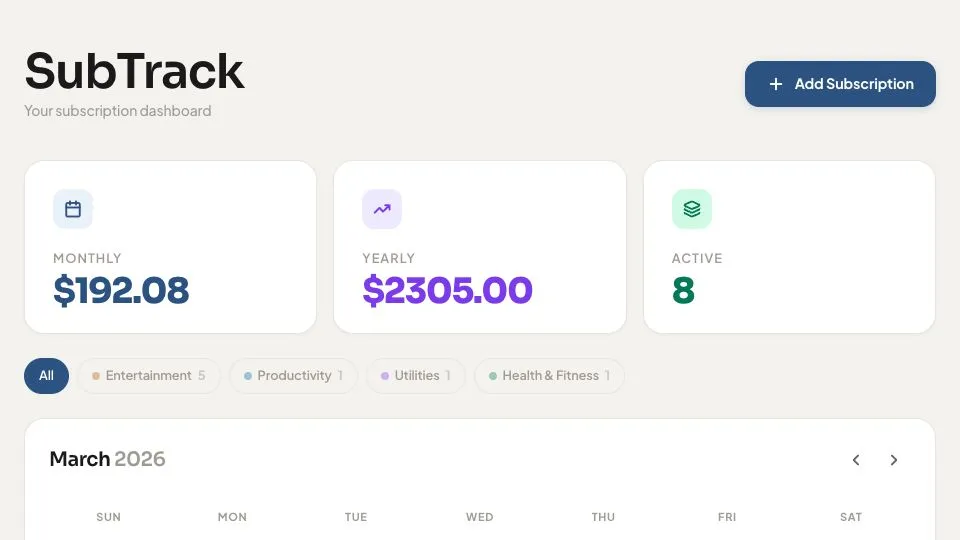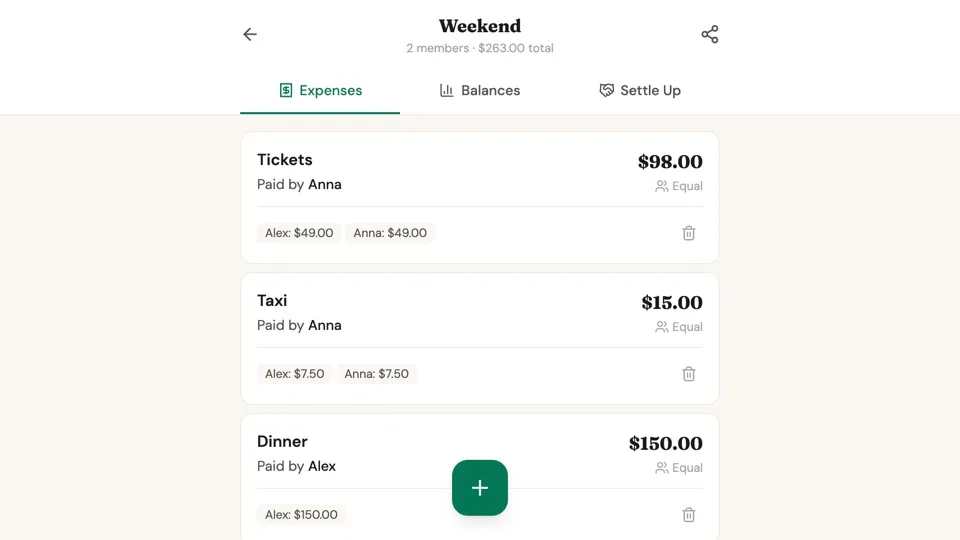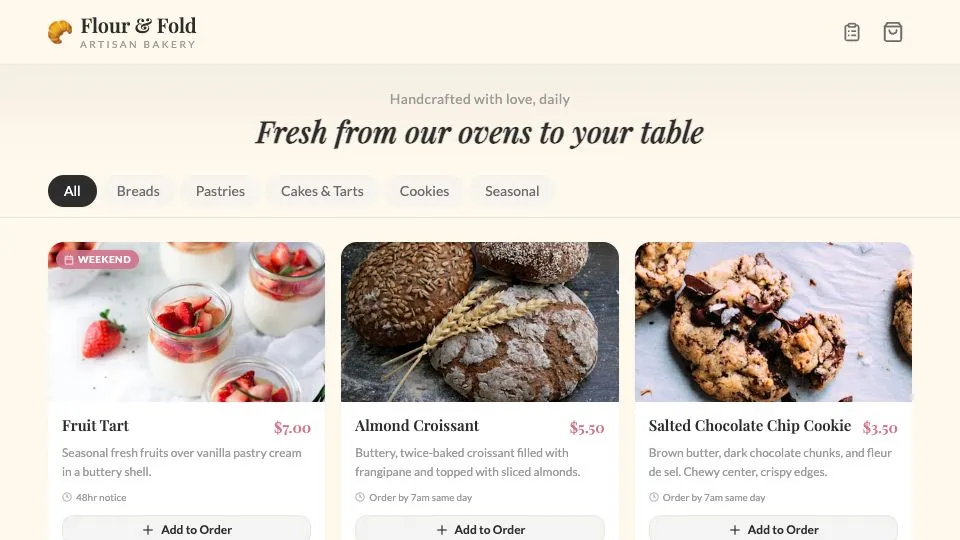
Flour & Fold Bakery
Create a clean local business site with products, contact details, and a pre-order form.
No coding experience needed
Describe what you want. Claude writes the code. AppDeploy makes it live.
Free to try. No credit card required.
Start with a prompt, then make it your own.
Step 1:
Open Claude, add AppDeploy once, and sign in.
Step 2:
Tell Claude what to build. Use your own words or start with one of the prompts below.
Step 3:
When the app is ready, Claude asks AppDeploy to deploy it and returns a live link you can open and share.
You focus on the idea. AppDeploy gets it online.
Everything needed to get your app live is handled for you automatically.
Set up AppDeploy in Claude web or Claude Desktop once, then describe the app you want to build.
Copy these into Claude before you leave this page:
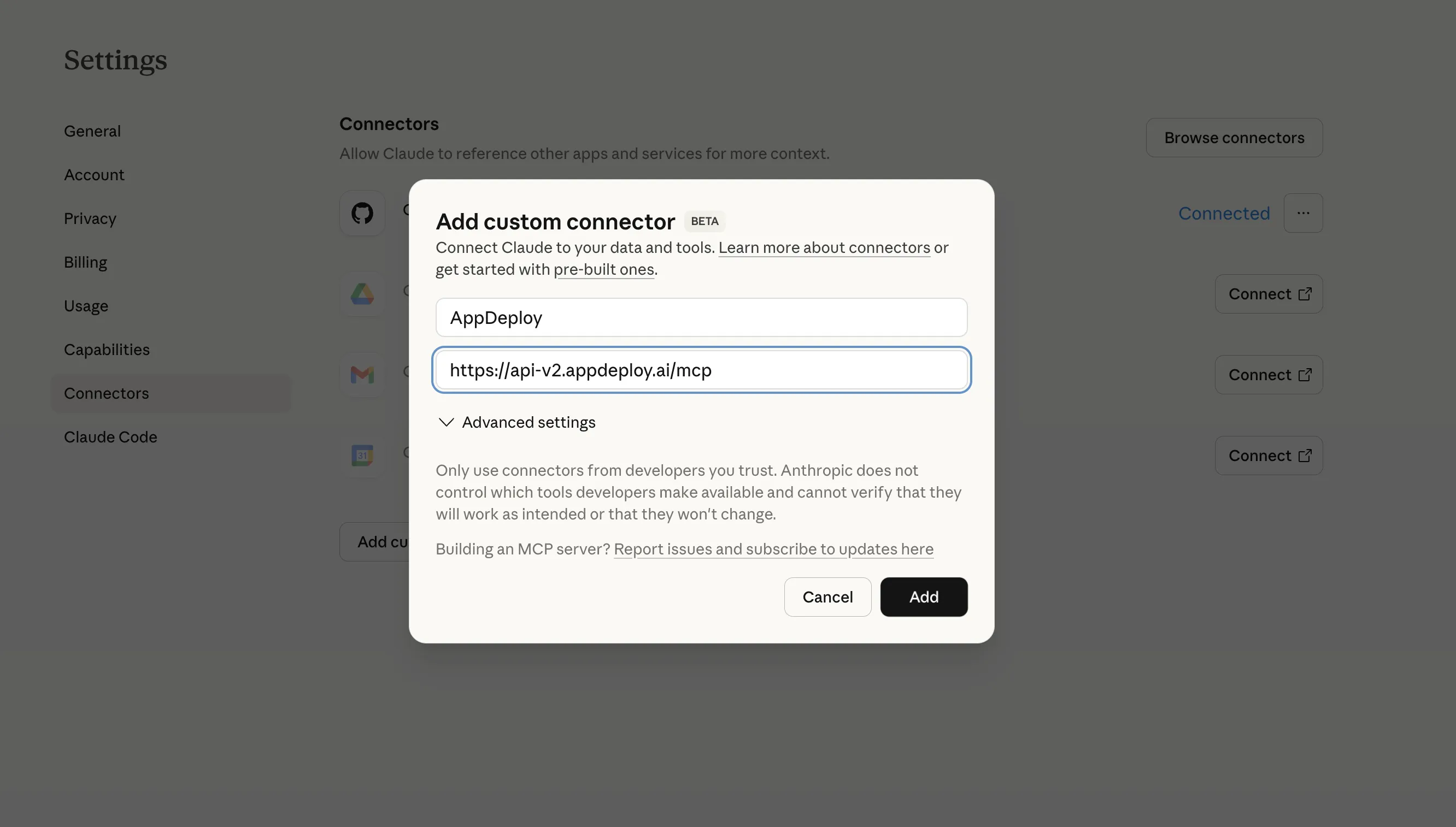
Name:
AppDeploy URL:
https://api-v2.appdeploy.ai/mcp You'll paste these into the Add custom connector form in step 2.
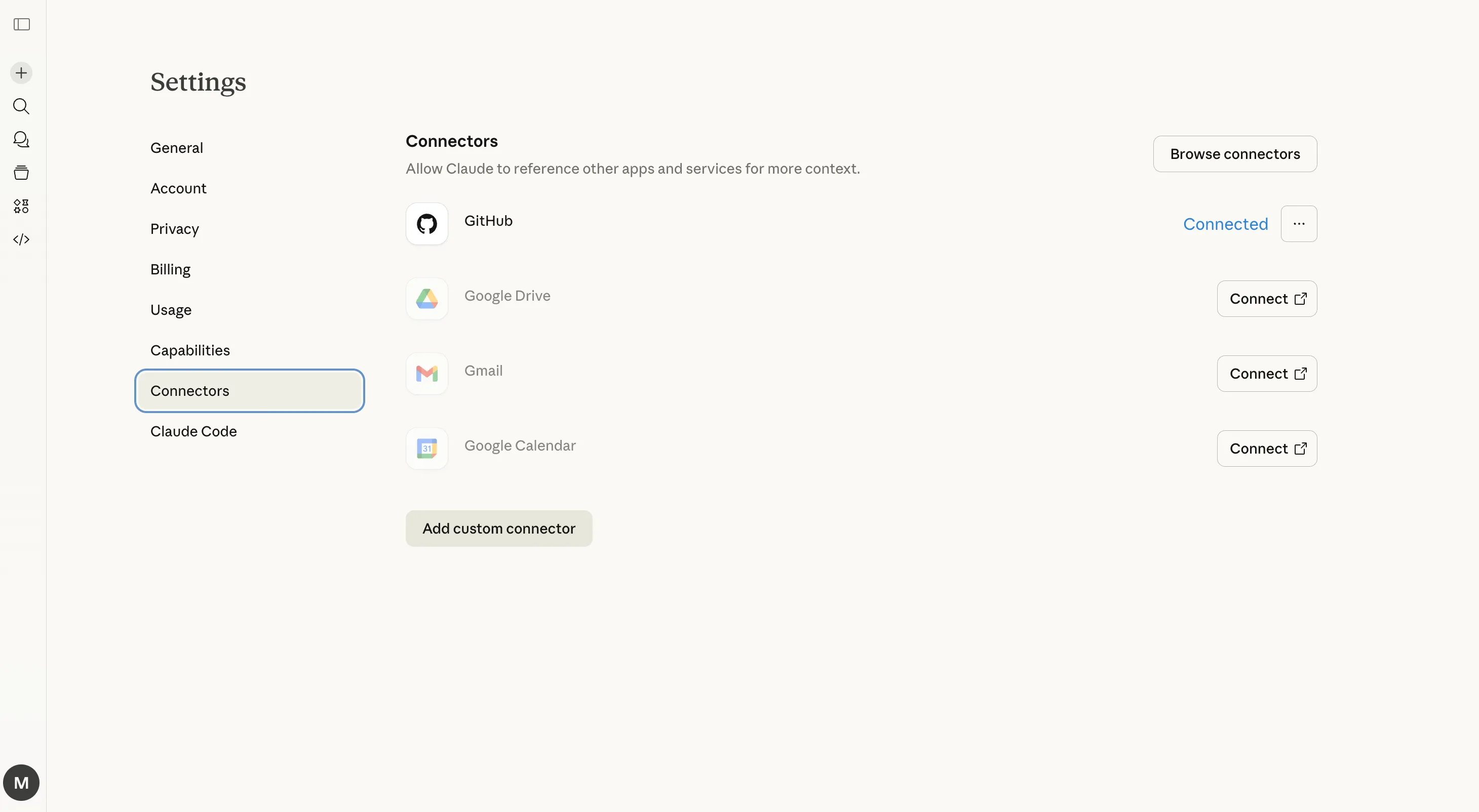
Open Claude, go to Settings in the bottom-left corner, then open Connectors.
Or, simply click: https://claude.ai/settings/connectors
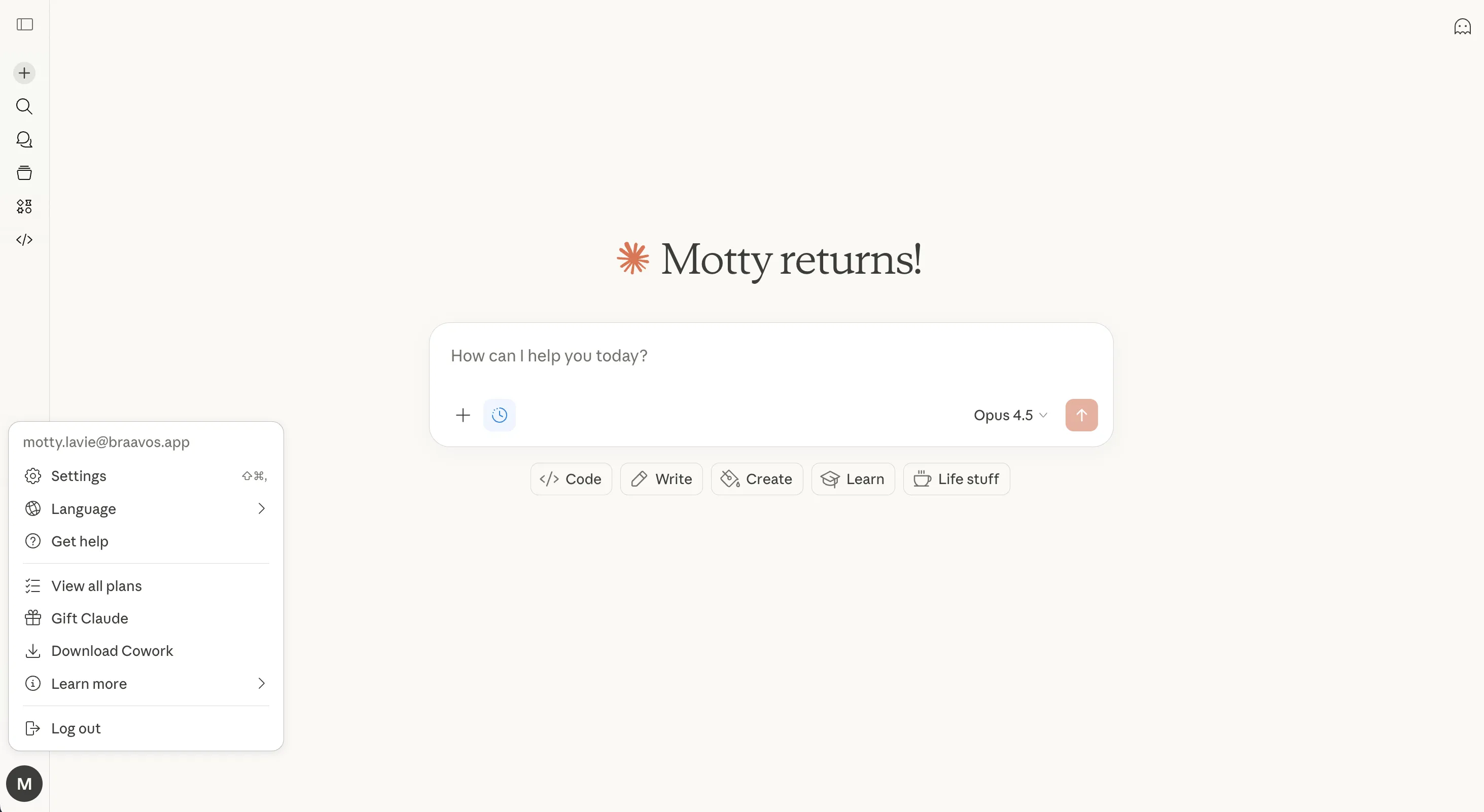
In Claude Settings, open Connectors, then click Add custom connector.
(*) Claude Free usually includes one custom connector. Paid users can add multiple custom connectors.
Paste the AppDeploy name and the URL you copied in step 1, then click Add.
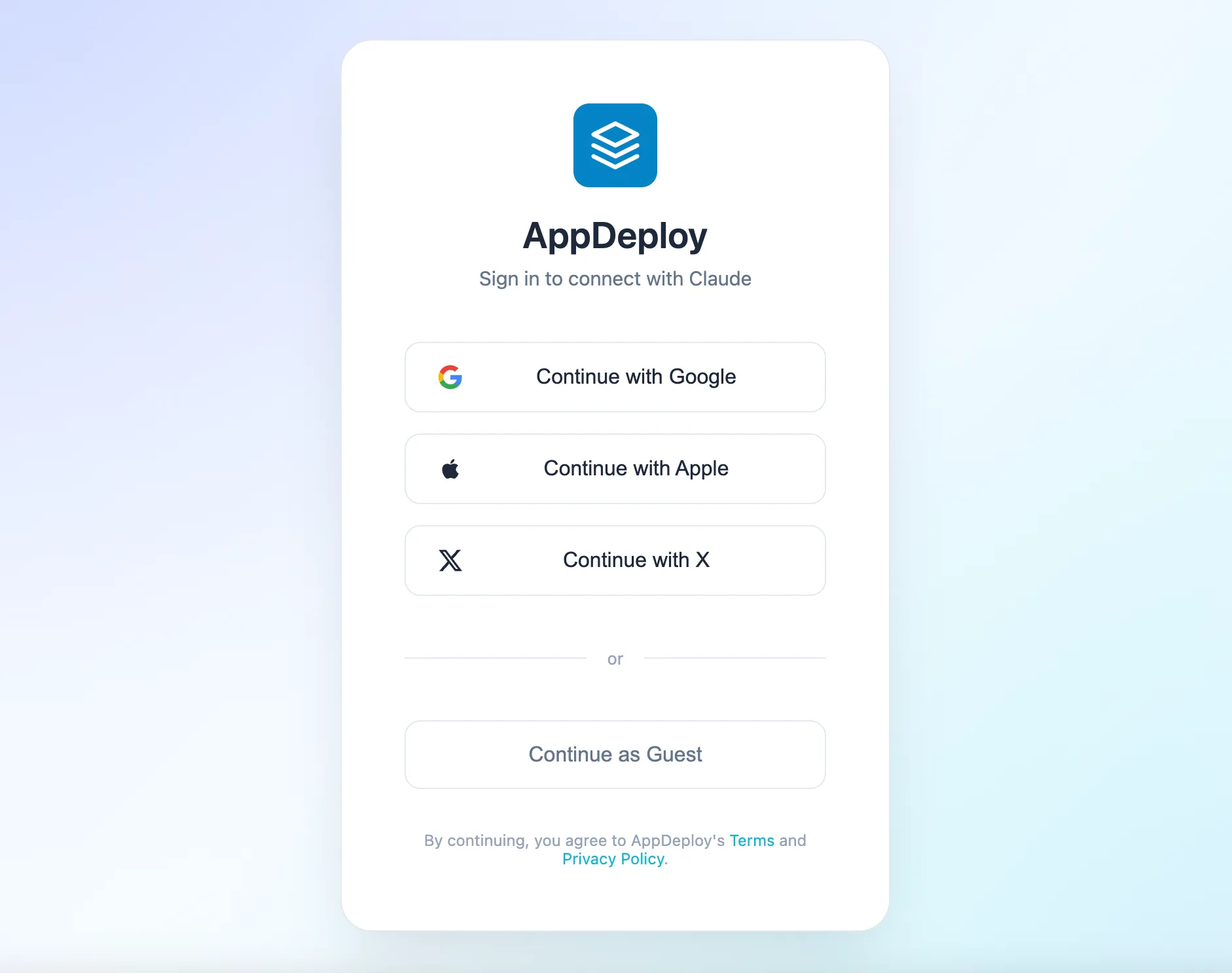
Click Connect on the AppDeploy item, then choose how you want to sign in: Google, Apple, X, or Guest.

After you sign in, close Settings and describe the app you want to build in the prompt.
AppDeploy only processes what is sent for deployment. It does not pull your broader chat history.
No. If you can describe what you want, you can build and ship.
Yes. You can try AppDeploy for free without a credit card.
Yes. You can set up AppDeploy on Claude's Free plan. The Free plan currently allows one custom connector. If that slot is already in use, remove the existing connector or upgrade your plan before connecting AppDeploy.
No. AppDeploy handles hosting and can set up the backend services your app needs.
Only the files and deployment data needed to build and deploy your app. It does not access your broader chat history.
Do not include secrets such as API keys, passwords, or private tokens.
AppDeploy handles hosting, deployment, and the backend services your app needs to go live. You can focus on the app itself.
Need ChatGPT instead? Visit the ChatGPT page
Set up AppDeploy in Claude once, then start building from chat.
Free to try. No credit card required.