
Deploy apps from Figma Make - setup guide
This guide shows how to connect AppDeploy to Figma Make so you can deploy apps from chat and get a live URL back.
Follow the steps below to set it up once, then deploy whenever you’re ready, without leaving Figma Make.
Note: To install the AppDeploy custom connector, you need a paid Figma plan.
Step-by-step Guide
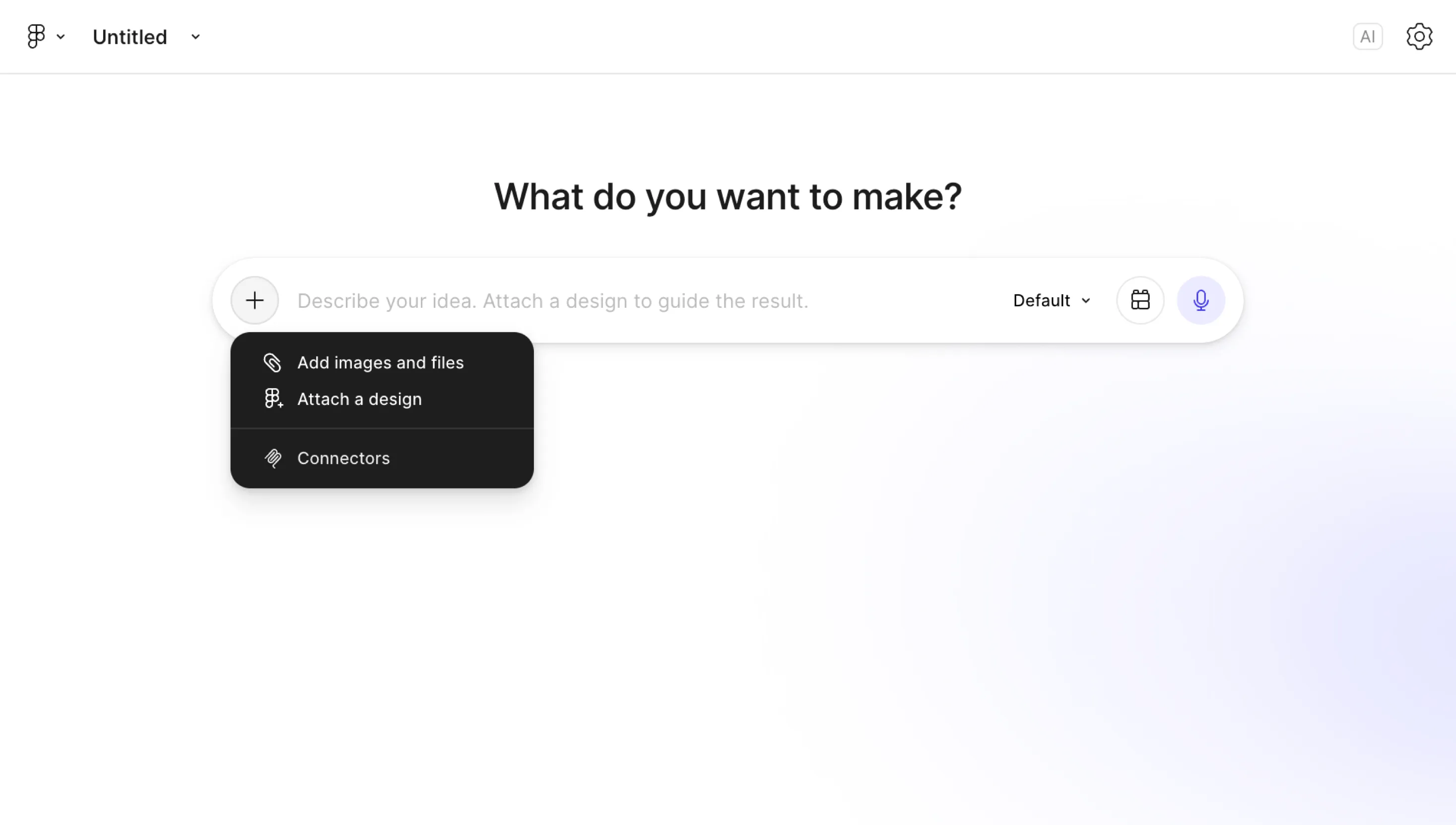
Open a Figma Make file, or create a new Figma Make file in your browser, and click the + button on the left side of the chat box, then select Connectors.
Note: If you already have other connectors, click Manage in the Connectors dropdown.
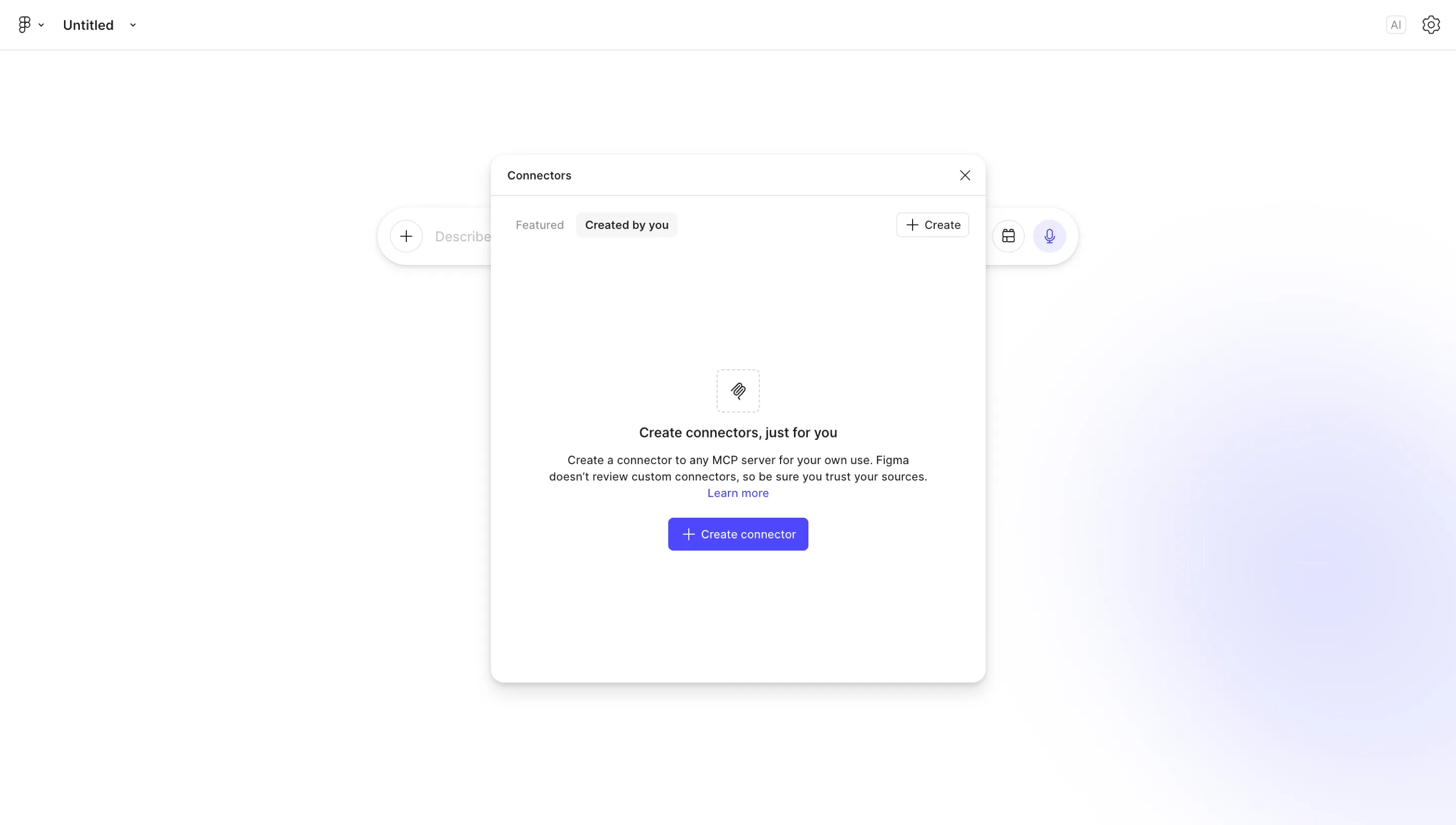
In the popup that opens, select the Created by you tab. Click Create connector.
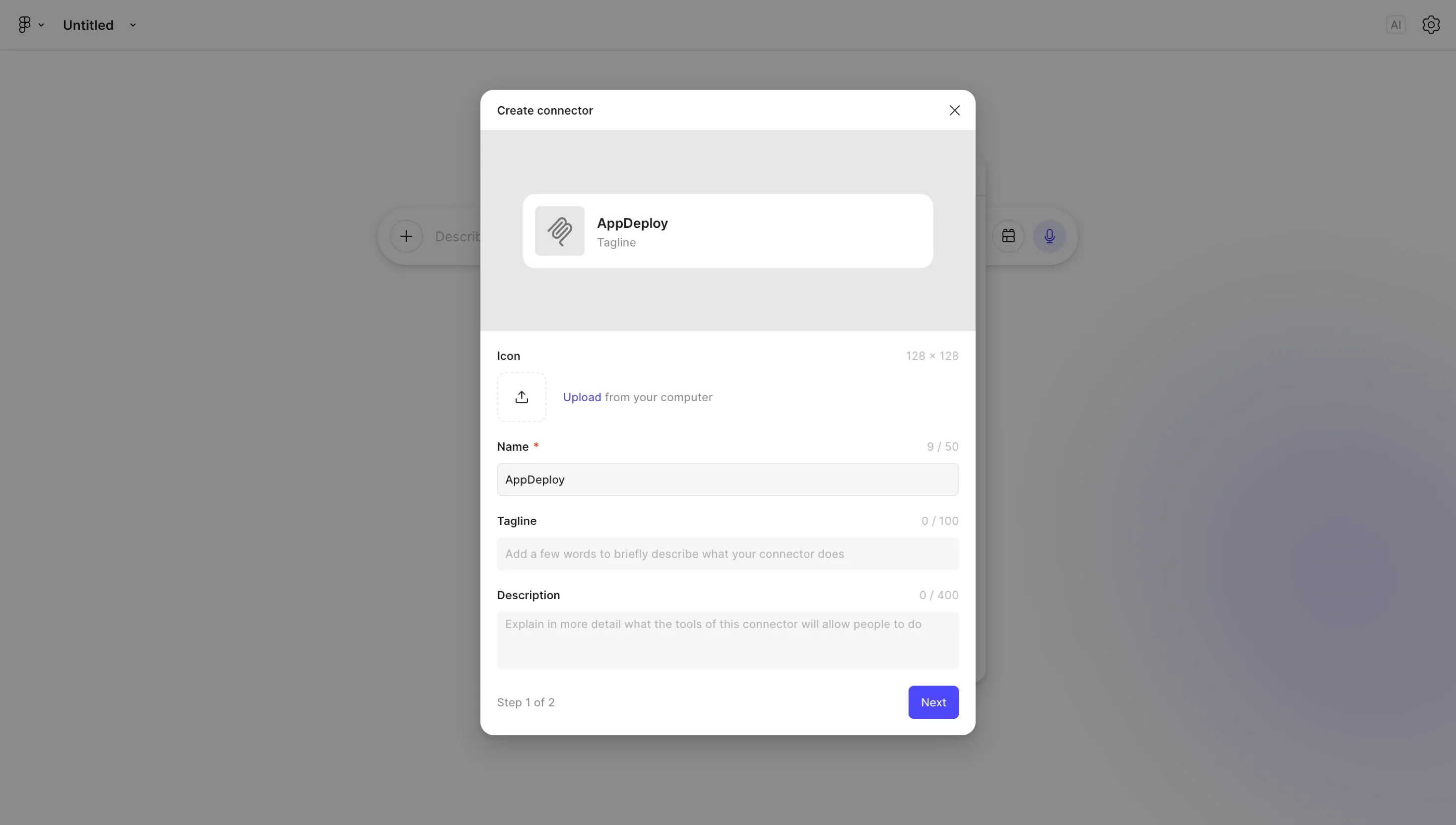
In the form that opens, enter:
Name:
AppDeploy
and click Next.
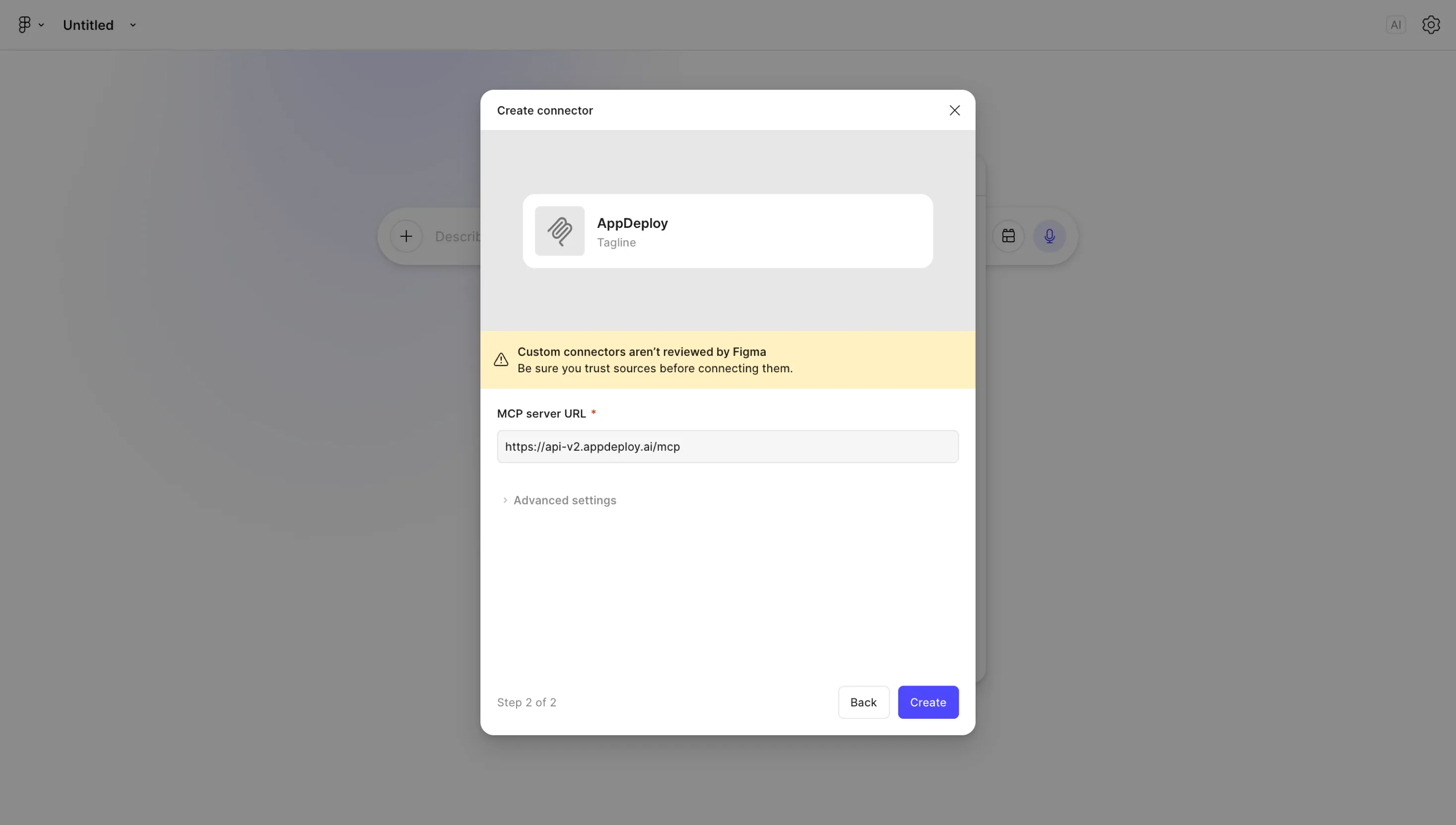
In the next step of the form, enter:
MCP Server URL:
https://api-v2.appdeploy.ai/mcpThen click Create.
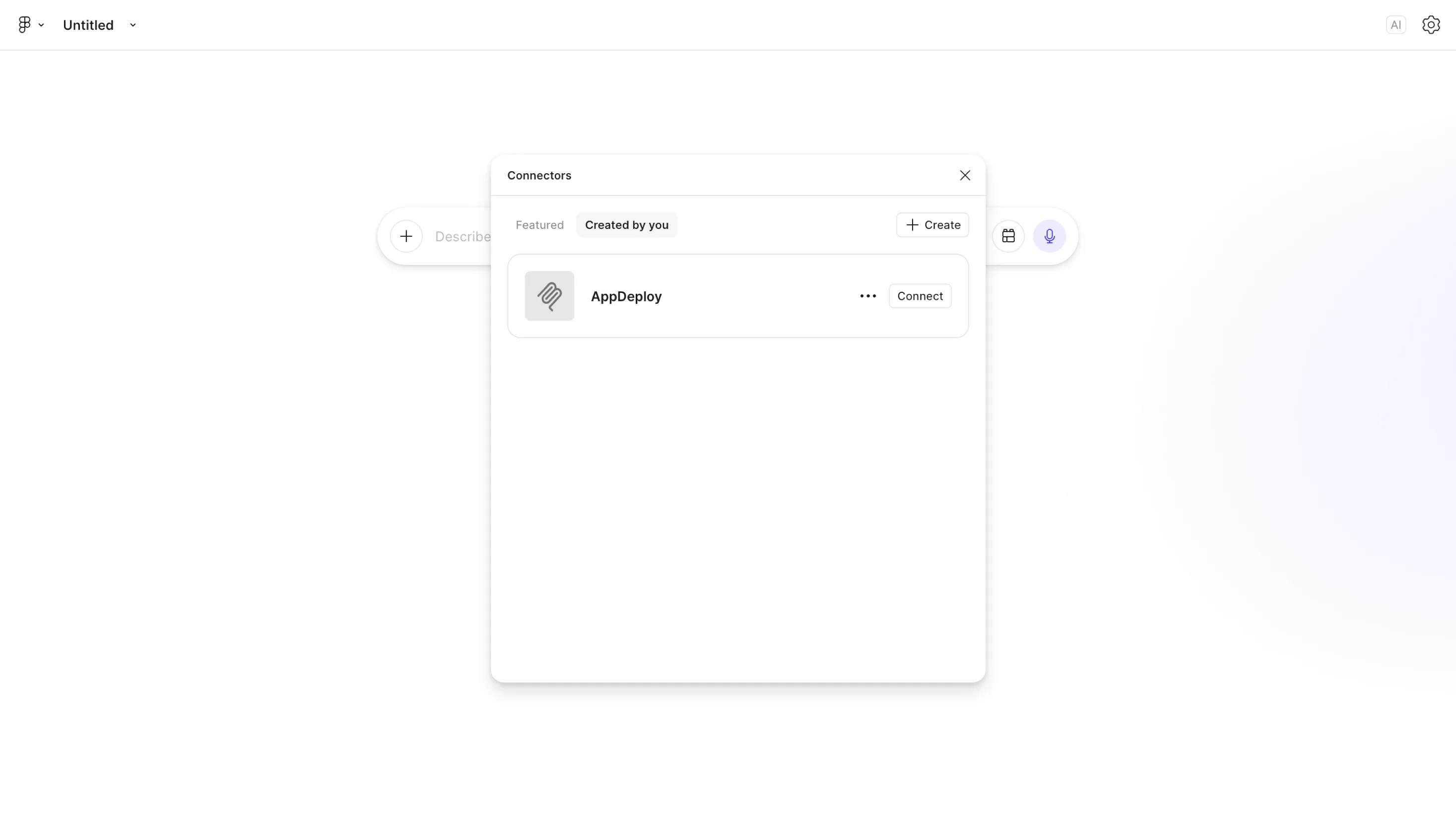
Click Connect on the AppDeploy connector.
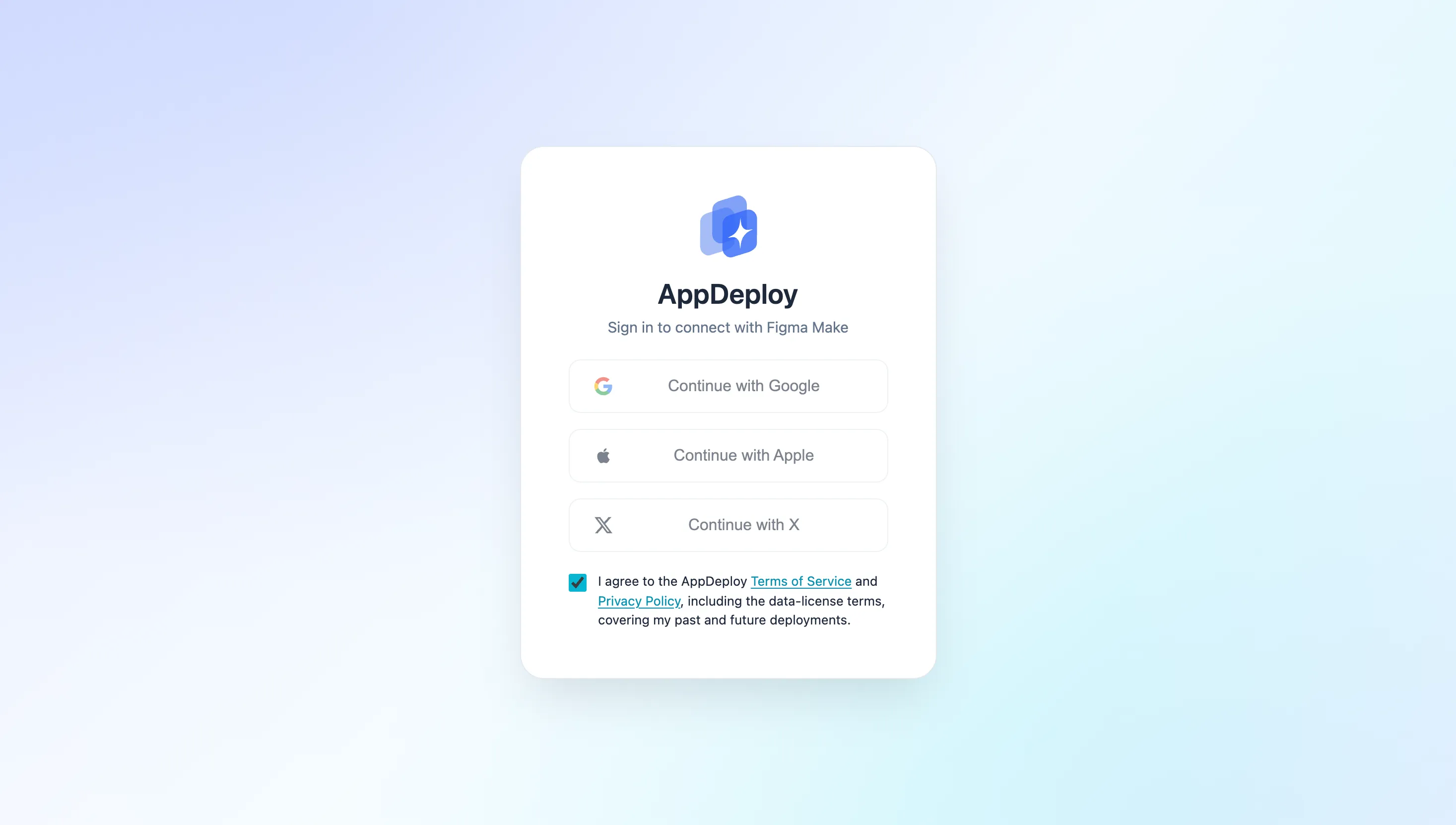
An authentication screen will open. Select how you’d like to sign in to AppDeploy: Google, Apple, or X.
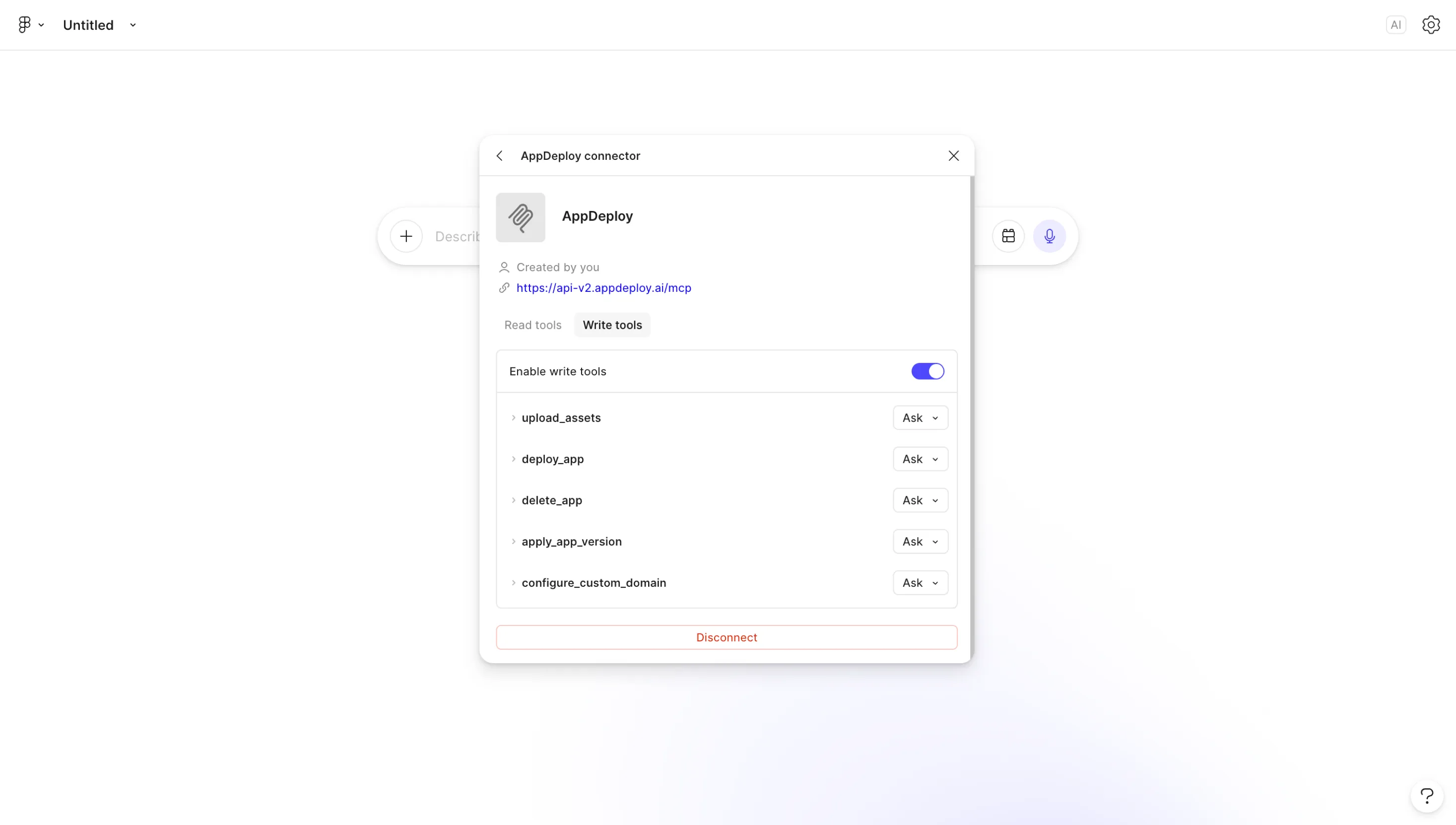
Return to Figma Make, then open the AppDeploy connector’s Write tools tab and toggle on Enable write tools.
Note: We recommend selecting “Always run” for both read and write tools to reduce interruptions during the chat.
That’s it! Close the connector popup and you’re all set to deploy your first app.
For example, you can enter the following prompt:
Build a Hello Figma Make webpage with a global visitor counter, then @AppDeploy
Note: Select the AppDeploy connector from the dropdown when entering the prompt.
Need Help?
If you encounter any issues, check our troubleshooting guide or contact us at support@appdeploy.ai.